Recipe Basket
Import from a Link, Photo, or Screenshot
AI Smart Import reads a recipe from a web page, a cookbook photo, or a screenshot. It fills in the title, ingredients, steps, and times. You check them before saving.
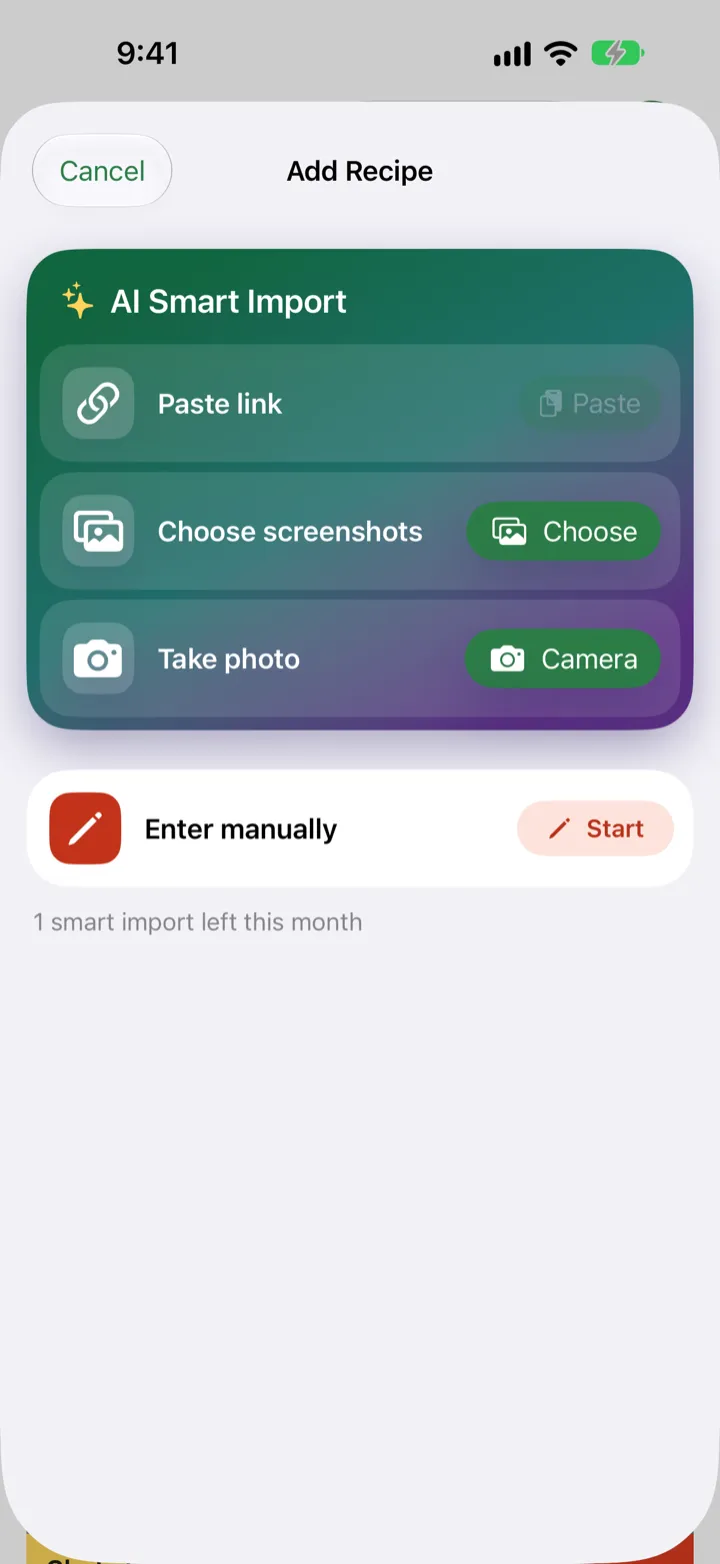
Import a Link
- Copy the link to the recipe in Safari or another app.
- Open Recipe Basket. On Recipes, tap +.
- Under AI Smart Import, tap Paste link.
- Wait for the import to finish. The Review screen opens.
- Check the rows with an amber triangle on a pale yellow background. These are guesses, like an estimated cook time or a tag.
- Fix anything that looks wrong.
- Tap Save.
Import Screenshots or Photos
- On Recipes, tap +.
- Tap Choose screenshots to pick from Photos. To shoot a cookbook page, tap Take photo.
- Add up to 8 photos for one recipe. For example, the ingredients from one page and the steps from the next.
- Use Move Left to put the photos in order.
- Tap View to see a photo up close. Tap Remove to drop it.
- Tap the Import button. It shows the number of photos, like Import 3 Photos.
- Check the Review screen. Tap Save.
Save from Safari
- On a recipe page in Safari, tap Share.
- Tap Recipe Basket.
- The recipe imports the next time Recipe Basket opens.
Which iPhones Can Import
AI Smart Import needs iPhone 15 Pro or later with Apple Intelligence turned on. Any iPhone on iOS 27 can add recipes by hand with Enter manually.
How Many Imports Are Free
One import a month is free. Lifetime costs $5.99, one time. It gives unlimited imports.