Recipe Basket
Always Backed Up and Synced with iCloud
Recipes sync through iCloud to all iPhones and iPads on the same Apple Account. On a new phone, the recipes download after you sign in.
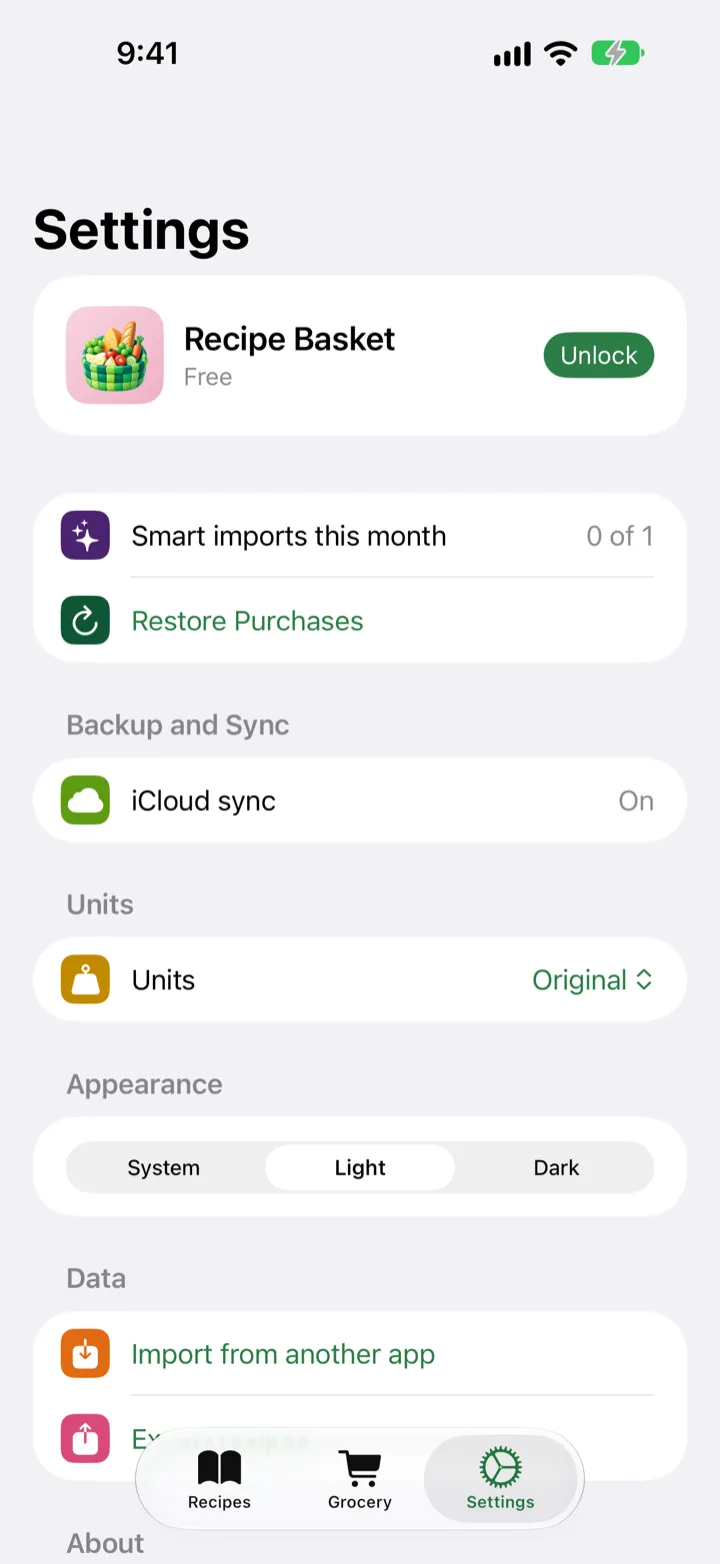
Turn On Sync
- On each iPhone, sign in to iCloud with the same Apple Account.
- In the iOS Settings app, tap the Apple Account name, then iCloud.
- Make sure Recipe Basket is turned on.
- Open Recipe Basket. Tap Settings.
- Under Backup and Sync, iCloud sync shows On.
- Add or edit a recipe. The change shows up on the other devices a few seconds later.
Moving to a New Phone
- Sign in to iCloud on the new phone with the same Apple Account.
- Install Recipe Basket.
- Open it. The recipes download on their own.
- A big library can take a few minutes the first time.
If Sync Is Off
Disabled: sign in to iCloud in the iOS Settings app. Restricted: Screen Time or a device manager blocks iCloud. Temporarily unavailable: iCloud is out of reach right now. Sync starts again by itself.
A Backup File
Settings → Export recipes saves all recipes in one file. Keep it in Files or iCloud Drive.
Deleting
A recipe deleted on one device is deleted on all of them.